
- 1Navigate to the Marketing Settings tab inside of your 'App Settings' In Your Platform Creator Dashboard Account.
- 2Select The Mailchimp option for your Email autoresponder.
- 3Open Your Mailchimp Account and copy the Mailchimp API Server Data Center number from the front of your Mailchimp account URL. Paste into the API Server Data Center field. This number will be different for everyone, so make sure this is for your specific account. (See The Highlighted text in The URL of Image Below)
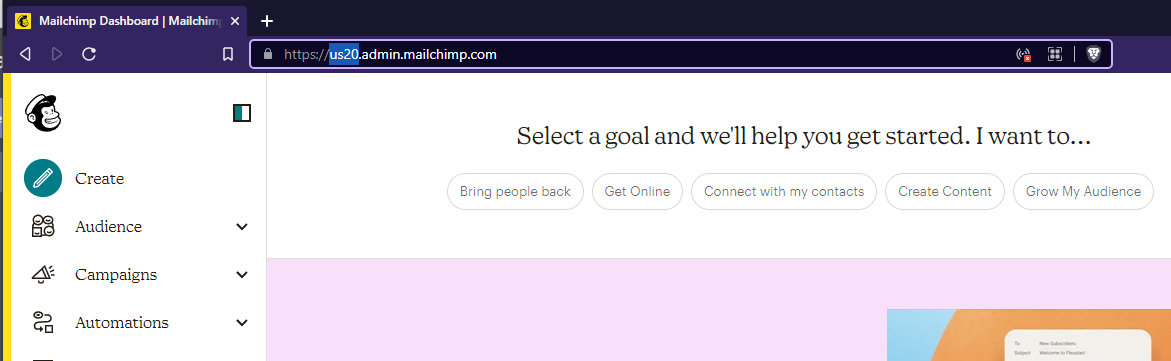
- 4Next Create A New Mailchimp API Key inside of your Mailchimp account by navigating to the 'Account' setting by clicking on the lower left hand icon. Go to 'Extras' tab and then click 'API Keys'. Finally proceed to click the 'Create API Key' button, and this should create you an API to use.
- 5Copy & Paste Your API Key into the 'API Key' field inside your Platform marketing setting, and then click the 'Save' button to connect your accounts.
- 6Select Your MailChimp List Once Platform Updates Upon Loading you will be presented with a dropdown menu under the Mailchimp API Key. Platform will display all your Mailchimp Lists. Select the list that you would like new members of your Platform to be added to, and click 'Save' button again.
- 7Test Your Mailchimp Integration by adding a member and then checking that the contact has been added to the list you requested.
- 8Success!! Add Automated Email sequences for Your New Members for Onboarding and Upselling Additional Products and Offers.


